Back to all integrations

EMIS
EMIS
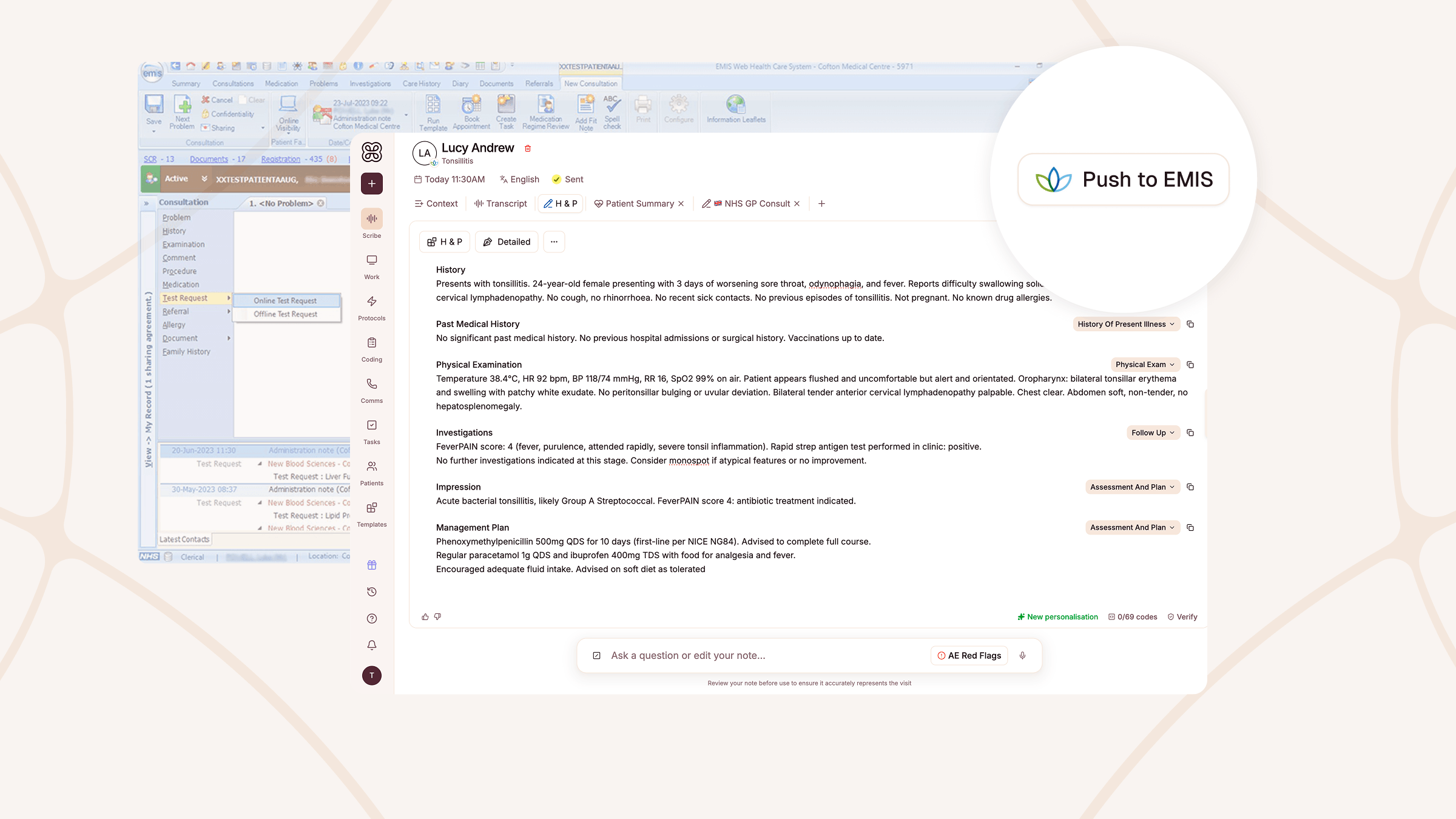
Connect Heidi to EMIS to sync your patient schedule, map customised note sections to EMIS sections, and push completed documentation, clinical codes, and observations from Heidi to EMIS in one click.
Key Benefits
AI generate notes, clinical codes, and observations reach the EMIS record in one click
Transcribe in real-time to generate fast, accurate and customise clinical documentation
The only AI scribe pushing both coded diagnoses and structured clinical observations natively into EMIS
About EMIS integration with Heidi
Overview
Heidi's EMIS integration is live in beta. For early access to use the integration, fill out this form and we'll be in touch.
UK GPs on EMIS spend too much of their day moving notes between tools. Heidi's integration with EMIS Web, delivered through Hero Health's Sidekick platform, puts an end to that. Capture the visit, generate a structured note complete with SNOMED codes and clinical observations, and push everything to the patient record in one click. Available now in early access to NHS GP practices across England.
How does it work?
Once connected, Heidi runs alongside your EMIS Web workflow. Your appointments sync automatically from EMIS into Heidi, so your list is ready when you are. Capture and generate your notes in session, then when the visit is done, "Push to EMIS" sends everything across in one step: note sections mapped to the right EMIS fields, SNOMED codes for diagnoses, and structured observations coded and ready to graph.
One-click note push: Visit note sections are written directly to the patient record in EMIS via Hero Health. No copying, no reformatting.
SNOMED codes: Heidi generates SNOMED clinical codes for diagnoses and problems and pushes them to EMIS alongside the note.
Structured observations: Blood pressure, BMI, SpO2, temperature, heart rate, height, and weight land as coded, structured values in EMIS, graphable and trackable over time.
Pricing
Free 14-day trial for new Heidi users.
Start with a free 14-day trial of Heidi. For current plan details, visit our pricing page
Practice & Enterprise (required for this integration).
The Emis integration is available on Heidi Practice and Enterprise plans. Contact our sales team to discuss pricing, licensing and deployment options for your clinic or group.
How to get connected
This integration is currently in beta, available for waitlisted early access.
Fill out this form to register your interest and a member from our team will reach out to get you connected.
About EMIS Health
EMIS Health, now part of Optum, is the developer of EMIS Web, the clinical system used by more than 50% of GP practices in England and widely deployed across NHS community health, mental health, and specialist services. EMIS Web is one of the UK's two dominant GP clinical systems, alongside SystmOne, and is used by tens of thousands of NHS clinicians to manage patient records, appointments, prescribing, and clinical coding. EMIS is transitioning to a next-generation cloud platform, EMIS-X, with expanded API capabilities rolling out from 2025 onwards.