Learning Objectives:
- Learn how speaking observations aloud enhance efficiency and patient engagement.
- Use the Context tab to include details outside of the consultation and sync these changes across your documents.
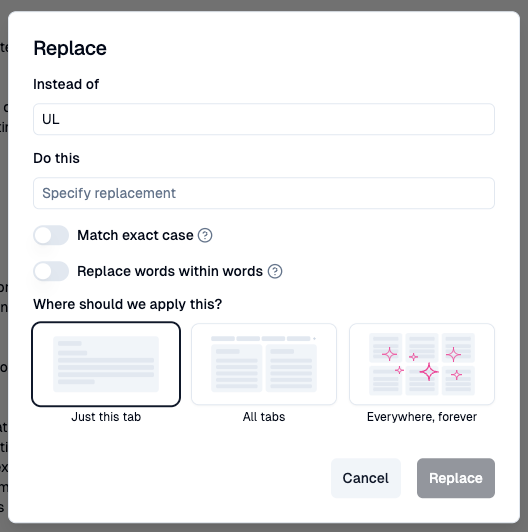
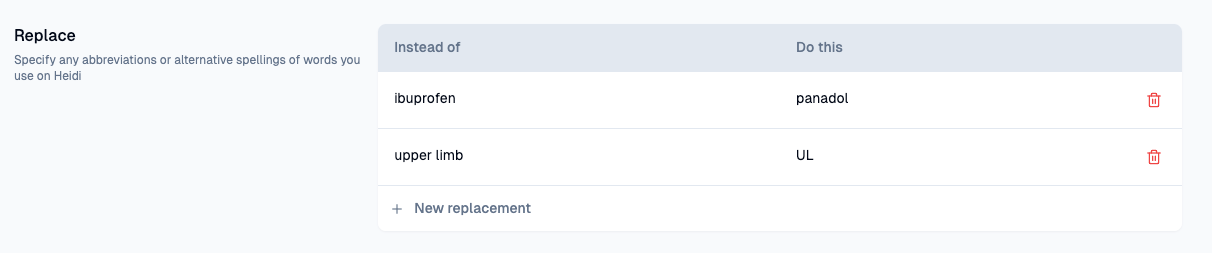
- Use the Replace feature to temporarily or permanently change the output of a word or phrase
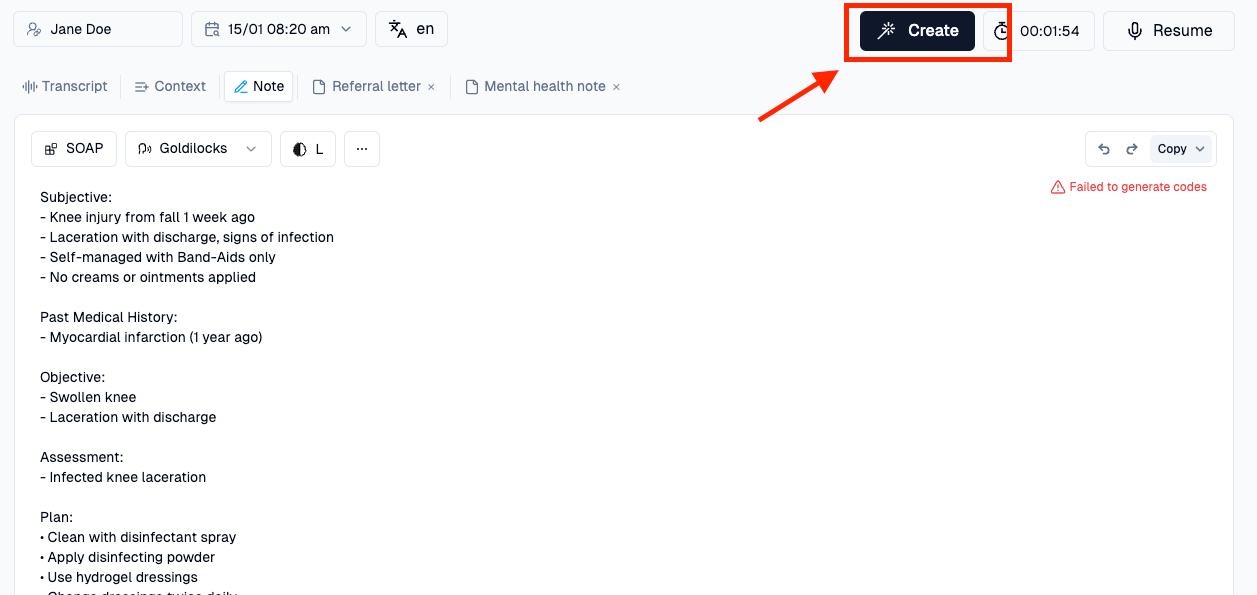
- Learn how to generate multiple documents in a session using the "Create" tab.
1. Speak aloud to enhance efficiency and patient engagement
- Gain consent out loud
- Verbalising observations: Speak your observations aloud during the consultation so Heidi can transcribe in real-time.
- Heidi captures these spoken notes, saving time on post-consult documentation.
- Flexibility to pause: If preferred, stop transcription, select your Heidi template, and generate the initial note. After the patient leaves, click resume, speak any additional findings aloud, and Heidi will update the note with your extra observations.
- If you prefer, you can type additional observations and findings instead into the 'Context' section after the patient leaves.
- Improved patient outcomes: Speaking out loud enhances patient involvement and overall satisfaction